Personal AIYour AI,


Your AI,
driving Miharu
From the AI assistant you already use — ChatGPT, Claude, and more — create and adjust Miharu monitoring, and pull out detection results for analysis.
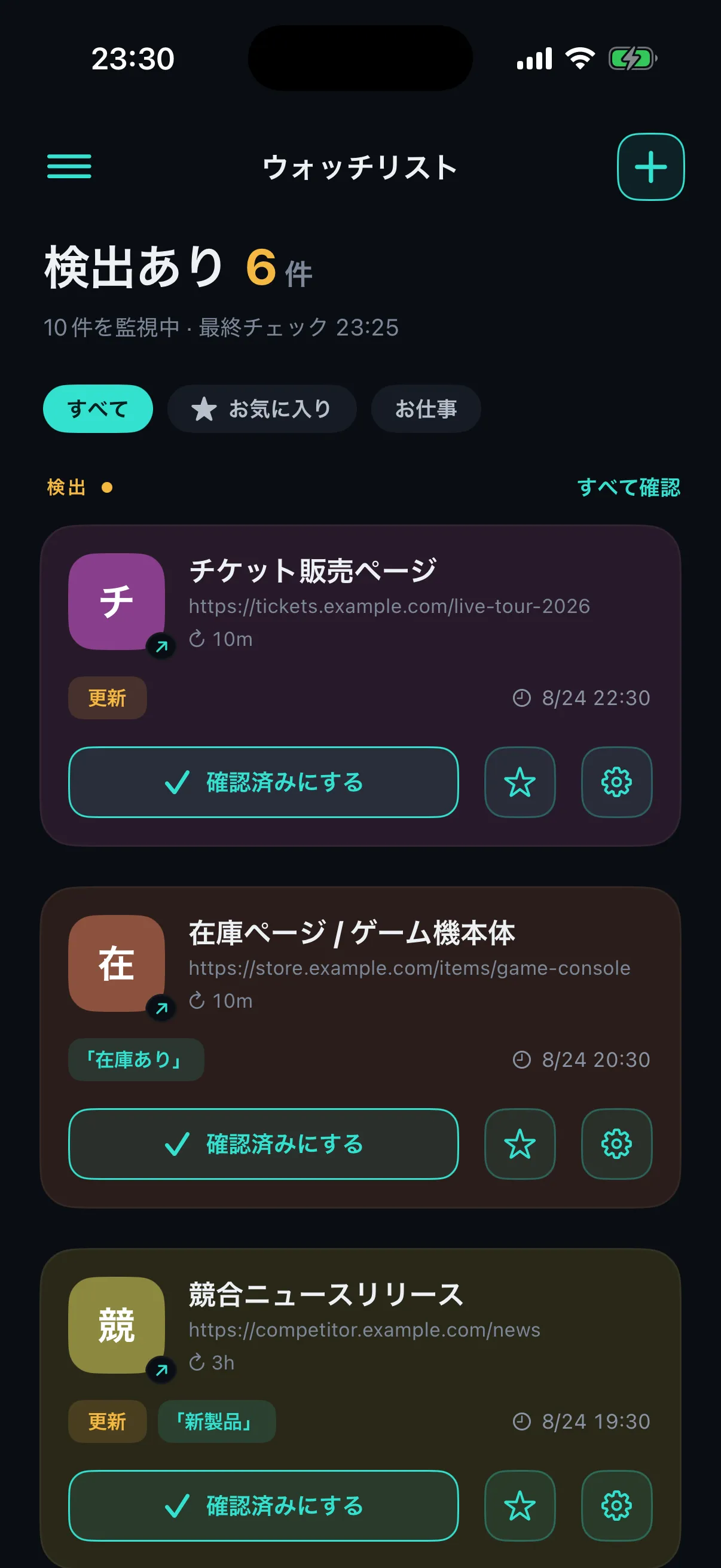
CHATGPTCLAUDEMCP READY
What changes
What connecting an AI gets you
Set up monitoring by asking
Ask for something like “watch the ticket page closely from 10 a.m. tomorrow”, and your AI turns it into the right monitoring settings.
Let your AI analyze results
Your AI pulls in detection history and price trends, then summarizes, analyzes, and reports on them.
Same plan as the app
Your limits and check frequency come straight from your plan in the app. There is nothing extra to pay.
Examples
For example, like this
EXAMPLE 01
Watch the console stock page and tell me when it’s available
I’ve set up stock monitoring in Miharu. You’ll get a push notification when “In stock” is detected.
EXAMPLE 02
Summarize the price history of the items I watched last month
I pulled the history for 3 items. A is down 12%, B is flat, and C went out of stock twice.
EXAMPLE 03
Can you check the ticket page more often, just tomorrow morning?
Done — between 8:00 and 12:00 tomorrow it will check at the shortest interval available.
Setup
How to connect
STEP 1Register the connector URL below with your AI
STEP 2When your AI connects to Miharu, a connection code appears on screen
STEP 3Enter that connection code under “AI Assistant Integration” in the Miharu app and approve it — you’re connected
MCP CONNECTOR URL
https://mcp.miharu-api.com/v1/mcpCustom connectors are available on every plan, including Free (one custom connector). On Team and Enterprise plans, an admin adds them. Plan requirements may change, so please check the Claude help center for the latest details.
1Open Customize → Connectors, select “+ Add”, then “Add custom connector”.
2Enter a name (e.g. Miharu) and the connector URL above, then add it.
3Choose “Connect”, and your Miharu connection code appears in the browser.
4Enter the connection code under “AI Assistant Integration” in the Miharu app and approve it. You can then manage monitoring from your conversations.
* Exact screen names follow the latest version of each AI service.FAQ
Frequently asked questions
Which AI services are supported?Any AI service that supports MCP (Model Context Protocol), including Claude and ChatGPT.
Does it cost anything?Miharu charges nothing extra — it works within your app plan. Note: for the AI service’s own requirements, see the notes under how to connect.
Does my personal information go to the AI?The AI can only see the monitoring you set up in Miharu and the results it detected.
For other questions,See all FAQs →
Connect Miharu to your AI.